

:max_bytes(150000):strip_icc()/092925-Best-Milan-Looks-SOC-40c5362a97b04e8c9d38e42ed9372ed1.jpg?w=150&resize=150,150&ssl=1 "Milan Fashion Week 2026: Best Street Style & Layering Trends")


How to Fix Streaming Issues on the TV App. In today’s world of streaming, the TV app has become one of the most popular ways to watch movies, series, and live TV on Apple devices.
With integration across Apple TV, iPhone, iPad, and Mac, it centralizes access to multiple platforms, including Apple TV+, Disney+, Hulu, and more. However, like any streaming service, the TV app is not immune to technical glitches. Users may encounter buffering problems, playback errors, missing episodes, or connectivity issues, which can disrupt the viewing experience.
Whether you are a casual viewer or a binge-watcher, learning how to fix streaming issues on the TV app is essential. This comprehensive guide will walk you through common problems, troubleshooting steps, preventive tips, and advanced solutions to ensure smooth streaming.
By the end of this guide, you’ll know how to resolve most TV app issues independently, saving time and frustration.
Understanding the TV App and Why Streaming Issues Occur
Before diving into troubleshooting, it’s important to understand how the TV app works and why streaming problems happen. The TV app is a hub for multiple content providers, integrating local purchases, subscriptions, and third-party streaming services. Its functionality depends on:
- Stable internet connection – Streaming requires adequate bandwidth.
- Updated software – The app and your device must run compatible versions.
- Linked accounts – Third-party services need proper authentication.
- Server stability – Sometimes, issues occur on the provider’s end, not yours.
Common streaming problems can stem from network interruptions, outdated apps, corrupted caches, account glitches, or regional restrictions. Knowing this helps in targeting the right fix.
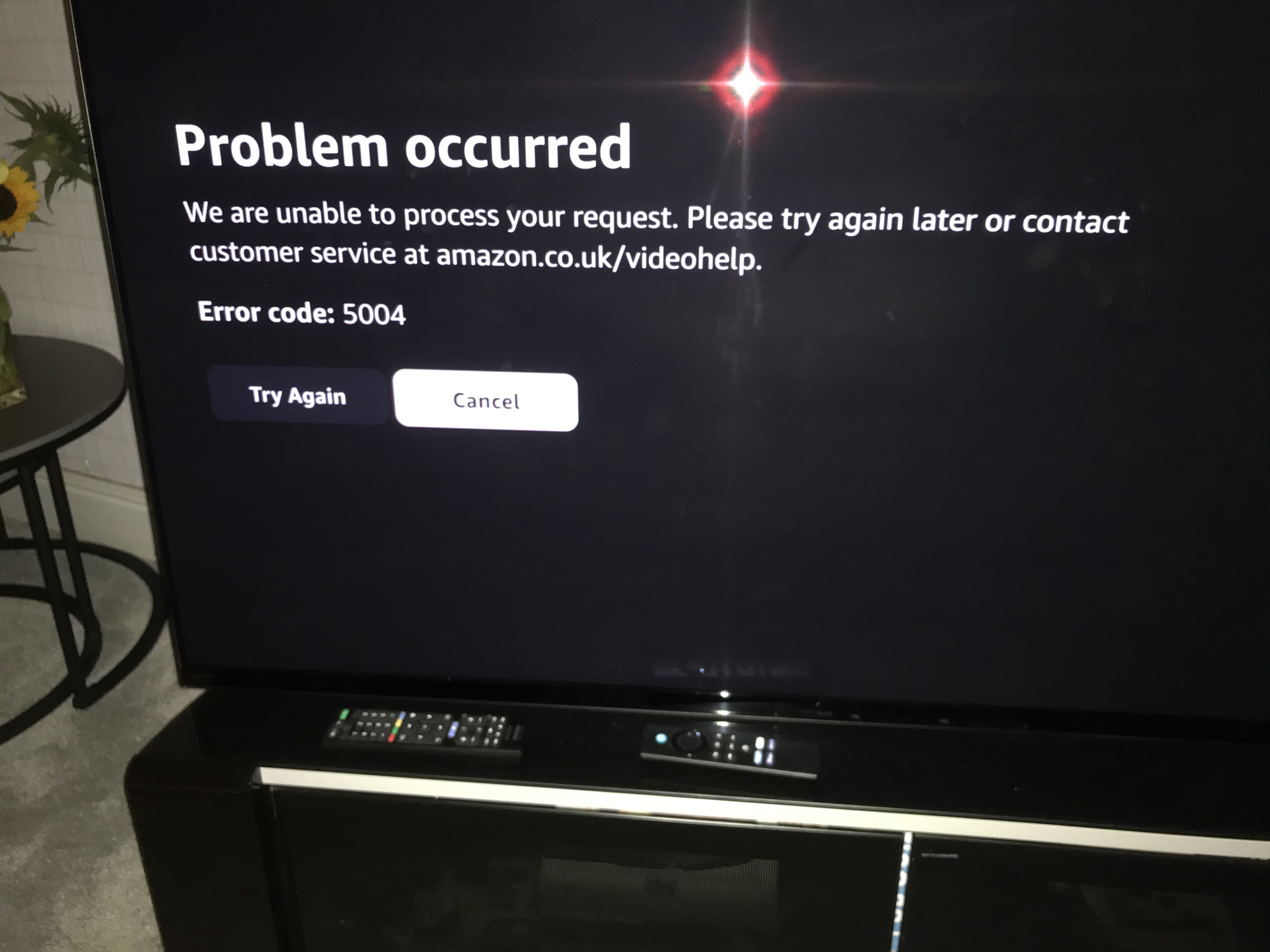
Common TV App Streaming Issues
Here are the most frequently reported problems users encounter on the TV app:
- Buffering or freezing during playback
- Error messages such as “Cannot Play Video”
- Missing episodes or movies in your library
- Playback starts but then stops unexpectedly
- Audio and video out of sync
- App crashes or refuses to open
- Third-party service content not appearing
- Inconsistent syncing across devices
Understanding the problem type is crucial for applying the correct solution.
Step 1: Check Your Internet Connection
A weak or unstable internet connection is the most common cause of streaming issues. To fix this:
a. Test Internet Speed
- Use a speed test app or website to check your connection.
- For HD streaming, you need at least 5 Mbps.
- For 4K or Apple TV+ content, aim for 15-25 Mbps.
b. Restart Your Router
- Turn off the router for 30 seconds, then turn it back on.
- Reconnect your device to the Wi-Fi network.
c. Use a Wired Connection (Apple TV)
- If possible, connect Apple TV to the router using Ethernet.
- Wired connections are more stable and less prone to buffering.
d. Reduce Network Load
- Pause downloads or other devices using bandwidth.
- Streaming works better when fewer devices compete for the same network.
Step 2: Restart the TV App
Often, a simple app restart resolves minor glitches:
- On iPhone/iPad: Swipe up (or double-click Home on older devices) and close the app, then reopen.
- On Apple TV: Press the Home button twice, swipe the TV app up to close, and relaunch.
- On Mac: Quit the TV app and reopen it.
This refresh clears temporary errors and often fixes playback problems.
Step 3: Update the TV App and Device Software
Outdated software is a frequent cause of streaming errors. Ensure both the app and your device are updated:
a. Update TV App
- Open App Store > Updates.
- Check if the TV app has an update available.
b. Update Device OS
- iPhone/iPad: Settings > General > Software Update.
- Apple TV: Settings > System > Software Updates > Update Software.
- Mac: Apple menu > System Settings > Software Update.
Updates often fix bugs and compatibility issues, improving playback stability.
Step 4: Check the TV App Server Status
Sometimes, the problem is not on your end. The TV app relies on servers from Apple and third-party providers:
- Visit Apple System Status to check if Apple TV services are experiencing downtime.
- Third-party services like Hulu, Disney+, or HBO Max may also have outages affecting the TV app.
- If servers are down, you’ll need to wait for resolution.
Step 5: Log Out and Log Back In
Account authentication issues can prevent streaming:
- Open the TV app.
- Go to Settings > Accounts.
- Log out of Apple ID or third-party streaming services.
- Restart the device.
- Log back in.
This clears token errors and refreshes subscriptions or purchased content.
Step 6: Clear the App Cache
Corrupted cache data can disrupt playback, especially for repeated buffering or crashing:
- Apple TV: Navigate to Settings > Apps > TV > Clear Cache (or reinstall the app).
- iPhone/iPad: Offload the app via Settings > General > iPhone Storage > TV > Offload App, then reinstall.
- Mac: Quit the app, remove temporary files via Library > Caches (advanced users), then reopen.
Clearing cache removes old data that may conflict with new episodes or updates.
Step 7: Check for Device Storage Issues
Streaming issues can also occur if storage is full, especially on iPhones or iPads:
- Check Settings > General > iPhone Storage.
- Delete unused apps, old downloads, or temporary files.
- Freeing up space allows the app to function smoothly, particularly when downloading episodes for offline viewing.
Step 8: Adjust Playback Settings
Some issues may arise from video quality settings or device capabilities:
- On iOS and Apple TV, you can adjust streaming quality in Settings > TV > Playback.
- Lowering video quality may reduce buffering on slower connections.
- Enable Automatic Download Updates to ensure the app has the latest content metadata.
Step 9: Verify Your Subscription and Purchases
If a show or movie is missing:
- Confirm your subscription is active (Apple TV+, Disney+, etc.).
- Check if content is available in your region; some shows are geo-restricted.
- Ensure the content is still part of your purchased or rented library.
Sometimes, missing episodes result from regional or licensing changes, not app malfunction.
Step 10: Restart Your Device
Restarting your device is a catch-all solution for minor software issues:
- iPhone/iPad: Power off, wait 10 seconds, power on.
- Apple TV: Settings > System > Restart.
- Mac: Apple menu > Restart.
This clears background processes and memory issues that may affect streaming.
Step 11: Reinstall the TV App
If none of the above solutions work, reinstalling the app often resolves deeper problems:
- Delete the TV app from your device.
- Reboot the device.
- Reinstall the TV app from the App Store.
- Log in and check if streaming is restored.
Reinstallation clears persistent bugs, corrupted files, and outdated configurations.
Step 12: Troubleshooting Specific Playback Errors
a. “Cannot Play Video” or “Video Not Available”
- Check your internet connection.
- Update the app and device.
- Log out and back in.
- Verify the video is available in your region.
b. Buffering or Freezing
- Reduce streaming resolution.
- Close other apps using bandwidth.
- Connect via Ethernet (Apple TV) or stronger Wi-Fi signal.
c. Audio Out of Sync
- Restart playback from the beginning.
- Disconnect Bluetooth headphones, then reconnect.
- Restart the device if the issue persists.
d. Episodes Not Showing
- Refresh the library by logging out and back in.
- Confirm subscription status.
- Update the app to fetch new content metadata.
Advanced Fixes for Persistent Issues
For users who have tried basic fixes without success:
1. Network Diagnostics
- Check router settings for firewall or port restrictions.
- Ensure DNS is properly configured; using a public DNS like Google DNS (8.8.8.8) can help.
2. Device Reset (Last Resort)
- Resetting iPhone/iPad: Settings > General > Transfer or Reset iPhone > Reset All Settings.
- Resetting Apple TV: Settings > System > Reset.
- Backup essential data before performing a reset.
3. Contact Support
- Apple Support: https://support.apple.com/tv
- Third-party streaming support if the content belongs to Hulu, Disney+, etc.
- Provide detailed info: device model, OS version, app version, and exact error messages.
Tips to Prevent Future Streaming Issues
Prevention is always better than troubleshooting. Here are strategies to reduce future problems:
- Regularly Update Your Device and TV App – Ensure compatibility and bug fixes.
- Monitor Internet Speed – Maintain at least 5-15 Mbps depending on content quality.
- Manage Storage – Keep 10-15% of device storage free.
- Link All Streaming Accounts Correctly – Prevent access errors.
- Use Notifications for New Episodes – Avoid missing content or triggering metadata errors.
- Avoid Running Multiple Bandwidth-Heavy Apps – Especially during HD or 4K streaming.
- Reboot Devices Periodically – Refresh system memory and app cache.
Conclusion: Mastering TV App Streaming
The TV app offers a convenient, centralized platform for tracking and watching your favorite series, movies, and live TV. However, streaming issues are inevitable due to network fluctuations, software bugs, and account glitches. By following the steps outlined in this guide—ranging from basic troubleshooting like restarting the app and checking your internet, to advanced solutions like reinstalling the app, adjusting playback settings, and contacting support—you can fix most problems efficiently.
Remember that keeping your device updated, managing storage, and monitoring your internet connection are proactive ways to maintain smooth streaming. Whether you’re watching Apple TV+ originals, Disney+ exclusives, or cross-platform content, mastering these troubleshooting techniques ensures a frustration-free viewing experience.
With this comprehensive guide, you’ll be equipped to resolve streaming issues quickly, keep your favorite shows up to date, and enjoy uninterrupted entertainment on the TV app across all your devices.

:max_bytes(150000):strip_icc()/092925-Best-Milan-Looks-SOC-40c5362a97b04e8c9d38e42ed9372ed1.jpg?w=300&resize=300,300&ssl=1 "Milan Fashion Week 2026: Best Street Style & Layering Trends")


More Stories
Best Budget Webcams 2026: 1080p Streaming Under $50
Best Webcams for Streaming 2026: AI Tracking & 4K Favorites
How to Use the TV App to Track Your Favorite Series